ROCm Runfile Installer#
The ROCm Runfile Installer installs ROCm, the AMD GPU Driver, or a combination of the two on a system with or without network or internet access. Unlike all other installation methods, the ROCm Runfile Installer can install ROCm and the AMD GPU Driver without using a native Linux package management system.
The key advantage of using the ROCm Runfile Installer is its offline installation support. Many system environments have network or internet access restrictions, making installation via normal package management difficult. Furthermore, some installation environments might also have general restrictions on package management usage. Therefore, the ROCm Runfile Installer lets you perform a completely self-contained ROCm software installation.
The ROCm Runfile Installer includes these features:
An optional easy-to-use user interface for configuring the installation
An optional command line interface for the installation
Offline ROCm and AMD GPU Driver installation (requires the prior installation of dependencies)
Packageless ROCm and AMD GPU Driver install without native package management
A single self-contained installer for all supported Linux distributions
Multi-architecture GPU support with selective installation and uninstall
Flexible component selection (core, development tools, SDK, OpenCL)
Graphics support option for Mesa/OpenGL workloads
Configurable installation location for the ROCm install
Prerequisites#
The ROCm Runfile Installer requires the following configuration:
Installation of dependency requirements for the ROCm runtime
Installation of dependency requirements for the AMD GPU Driver (optional)
Sufficient storage space for the installation (100 GB of free space recommended)
A supported Linux distribution
Dependency requirements#
The ROCm components contained within the ROCm Runfile installer have a specific set of libraries, frameworks, and other elements that must be pre-installed on the system before you can use ROCm after the installation. Similarly, the inclusion of the AMD GPU Driver as part of the installation also requires specific libraries that must be pre-installed. ROCm Runfile installer users must pre-install the list of required first-level dependencies.
To install the pre-install dependencies, use one of two methods:
Manual installation
The ROCm Runfile Installer
Manual installation#
You can determine the dependent packages from the ROCm
Runfile Installer Pre-Install Configuration Settings menu
in the GUI or from the command line by using the deps=list rocm argument
for ROCm or the deps=list amdgpu argument for the AMD GPU Driver. This list, which indicates all packages
required for the ROCm runtime or the AMD GPU Driver, is displayed and saved to a
file named deps_list.txt in the root rocm-installer directory. The required libraries, frameworks, and other components
within the required packages must be on the system when running ROCm or installing the AMD GPU Driver.
Users can manually install the required packages in the list using any method.
The list of packages that is displayed and saved is not directly usable by the package manager.
Each line indicates the name of the package or versioning required to meet the dependency requirement.
Some dependencies might show multiple packages separated by the | symbol, meaning that any package from the list satisfies
the package dependency. For example, the libgcc-dev dependency might be libgcc-5-dev | libgcc-7-dev, meaning
that either libgcc-5-dev or libgcc-7-dev can be installed to satisfy the corresponding dependency.
System administrators might prefer a manual installation process when deploying ROCm across a multi-node cluster environment, where a base operating system image is prepared and applied. This base OS image might have the dependency requirements pre-installed.
ROCm Runfile Installer#
For single-system environments, users can choose to have the ROCm Runfile Installer automatically install the
dependency requirements as part of the pre-installation stage for ROCm or the AMD GPU Driver. Any missing dependency requirements can
be installed using the Install Dependencies option of the Pre-Install Configuration Settings menu
in the GUI or from the command line using the deps=install rocm or deps=install amdgpu argument.
Note
The ROCm Runfile Installer requires a network or internet connection to install the dependency requirements.
Supported Linux distributions#
The ROCm Runfile Installer supports the following Linux distributions and versions:
Ubuntu: 22.04, 24.04, 26.04
RHEL: 8.10, 9.4, 9.6, 9.8, 10.0, 10.2
SLES: 15.7, 16.0
Debian: 12, 13
Oracle Linux: 8.10, 9.7, 10.1
Rocky Linux: 9.7
Important
The new ROCm runfile installer is a universal installer that supports all listed distributions from a single
.run file. There is no need to download distribution-specific builds as was required in previous versions.
Getting started#
The ROCm Runfile Installer is distributed as a self-extracting .run file.
To install ROCm, launch the installer from any directory on the system.
Downloading the ROCm Runfile Installer#
Download the ROCm Runfile Installer from repo.radeon.com using the following command:
wget https://repo.radeon.com/rocm/installer/rocm-runfile-installer/rocm-rel-<rocm-version>/<installer-file>
Substitute values specific to your installation for the following placeholders:
<rocm-version>    = ROCm version number for the installer (for example, 7.14)
<installer-file>  = The installer .run file
For example, to download ROCm 7.14 of the ROCm Runfile Installer:
wget https://repo.radeon.com/rocm/installer/rocm-runfile-installer/rocm-rel-7.14/rocm-installer-7.14.0-5.run
Running the ROCm Runfile Installer#
After downloading the ROCm Runfile Installer, run it from a terminal using GUI install or Command line install. See the sections below for more details.
You can obtain help, version, architecture, or component information using the following installer .run file argument options:
bash rocm-installer-7.14.0-5.run help
bash rocm-installer-7.14.0-5.run version
bash rocm-installer-7.14.0-5.run buildinfo
bash rocm-installer-7.14.0-5.run gfx=list
bash rocm-installer-7.14.0-5.run compo=list
The help, version, buildinfo, gfx=list, and compo=list commands run without extracting the installer contents.
For all other argument options, or if no arguments are specified, the installer .run file self-extracts
to the current working directory where the .run file is executing.
The self-extraction process creates a new directory named rocm-installer containing the content
and tools required for the installation. The rocm-installer directory also includes a logs
directory for recording the installation process. For more information, see Log files below.
Note
The installer self-extraction process might take a significant amount of time due to the size of the installer content and the decompression process.
Install methods#
The ROCm Runfile Installer provides two methods for running the ROCm installation:
GUI install: The GUI installation includes a visual interface for configuring the installation, letting you specify the pre- and post-installation requirements. In addition, the GUI provides feedback and guidance for setting up the installation. This method is recommended for new and intermediate installer users.
Command line install: The command line interface installation method provides a direct terminal-based approach for configuring and running the installation. This method is recommended for more advanced installer users and automation scenarios.
GUI install#
Launch the GUI-based installation of the ROCm Runfile Installer from the terminal command line without arguments as follows:
bash rocm-installer-7.14.0-5.run
GUI#
Use the Runfile Installer GUI to configure the installation, from the pre- to post-install options.
Starting from the Main menu, the user interface contains multiple menus and sub-menus for each stage of the installation process.
Main menu#
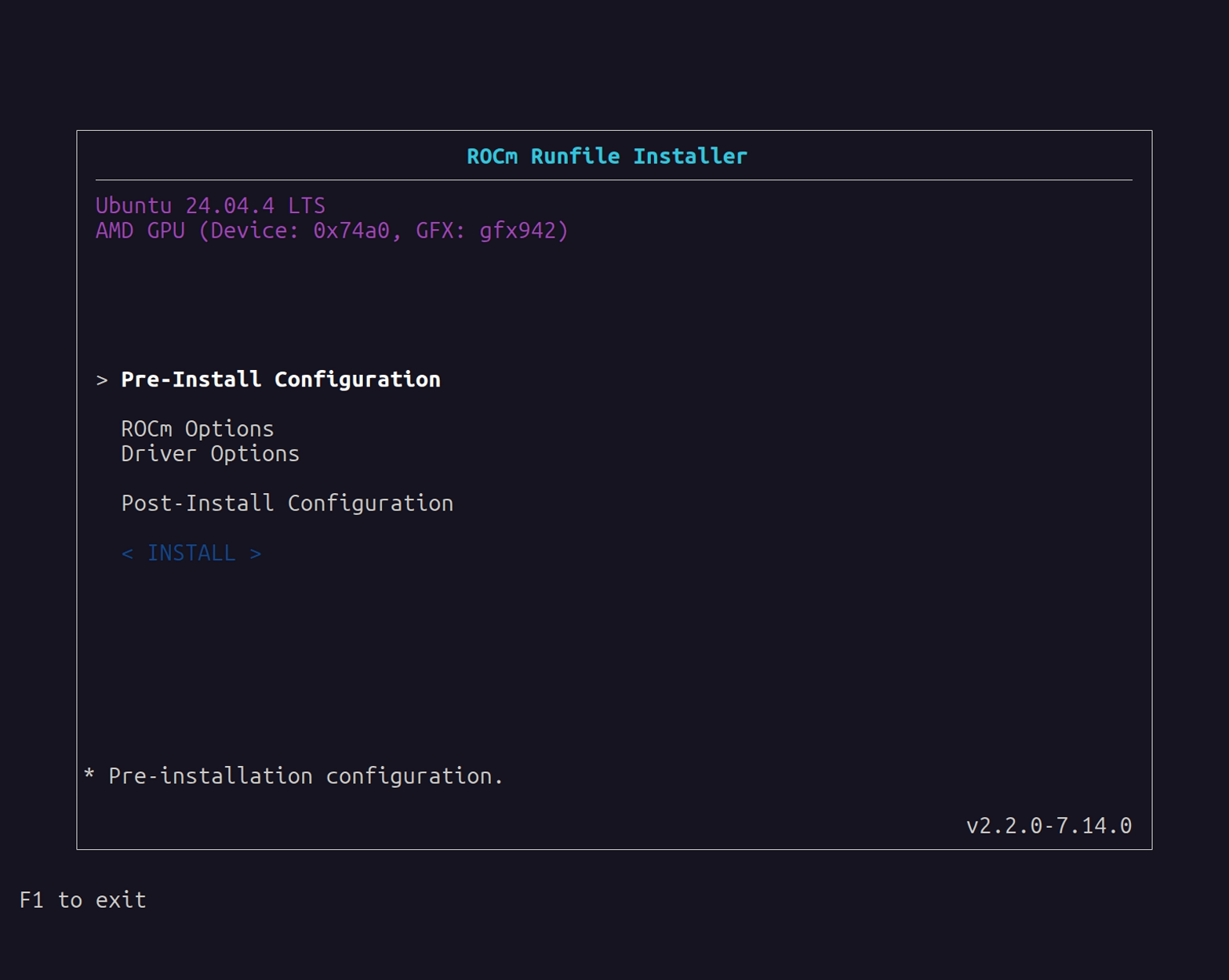
The Main menu is the installation starting point.
Pre-Install Configuration Settings menu#
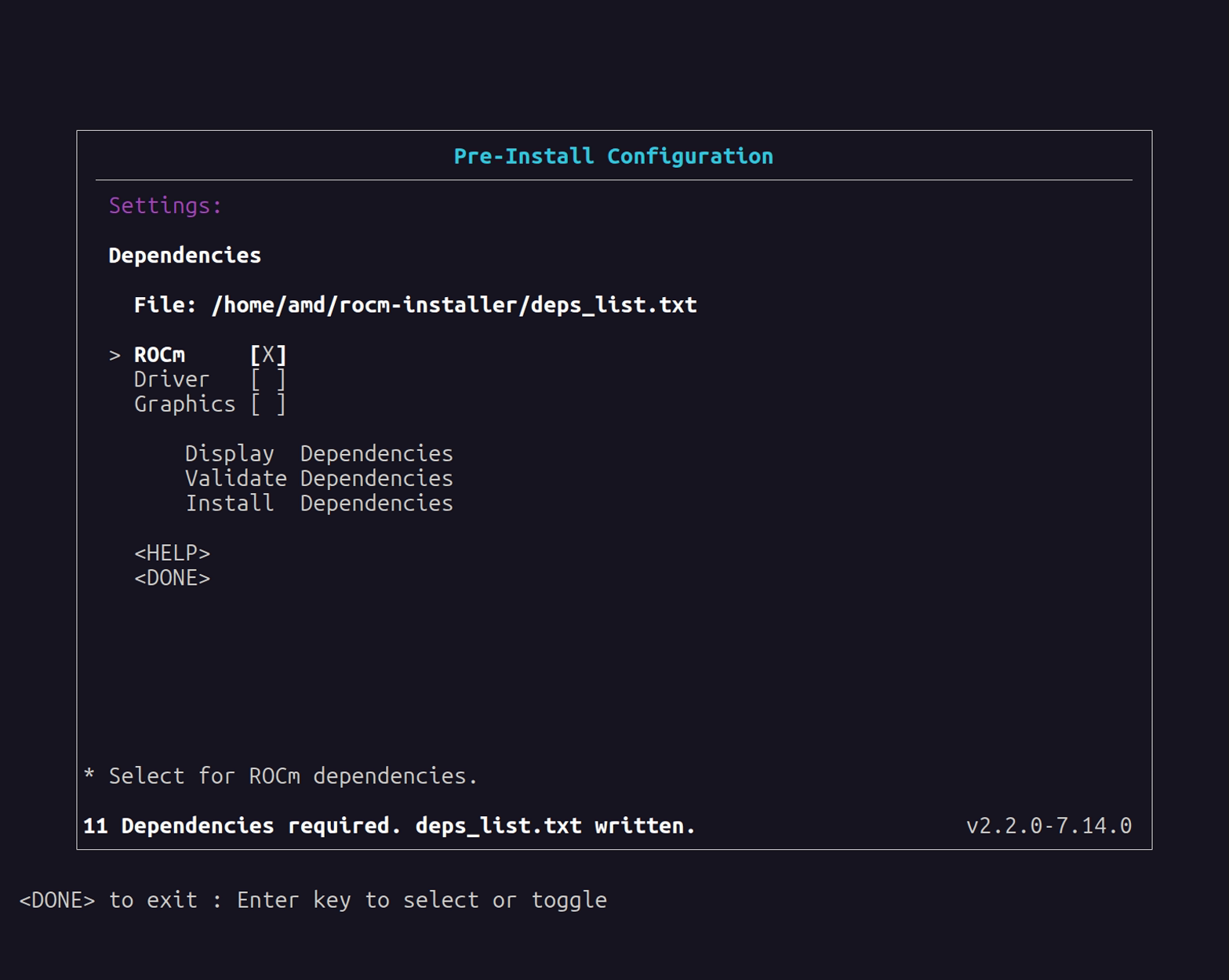
The Pre-Install Configuration Settings menu is an optional menu used to configure pre-installation requirements before installation. The pre-installation settings relate to the dependent libraries and packages required by the ROCm runtime or the AMD GPU Driver.
File
File displays the location of the
deps_list.txtfile. This file is based on the combination of selected dependencies using the ROCm, Driver, and Graphics checkboxes and either Display Dependencies or Validate Dependencies. If Display Dependencies is selected,deps_list.txtincludes a list of all required dependencies. If Validate Dependencies is selected,deps_list.txtcontains only the missing dependencies on the system that still require installation. The File field is initially blank until Display Dependencies or Validate Dependencies is selected. Use the Install Dependencies to install the required dependencies on the system.ROCm / Driver
The ROCm and Driver checkboxes are used to select which dependencies you want to display, validate, or install.
Graphics
The Graphics checkbox enables mixed graphics and compute support for Mesa/OpenGL workloads. This is an option for non-Instinct GPUs such as AMD Radeon or Ryzen GPUs/APUs. When checked, the installer includes the
amdgpu-libpackage.Display Dependencies
Display Dependencies lists all required (Debian or RPM) packages that must be pre-installed on the system. These packages are required by ROCm or the AMD GPU Driver being installed by a particular ROCm Runfile Installer version.
Note
The required packages are listed in the
deps_list.txtfile and can be installed separately from the ROCm Runfile Installer.Validate Dependencies
Validate Dependencies verifies which required packages are currently installed on the system where ROCm or the AMD GPU Driver is being installed. It displays which packages from the required packages list are missing.
Note
The missing packages are listed in the
deps_list.txtfile.Install Dependencies
If the installer is running on the system where ROCm or the AMD GPU Driver will be installed, you can choose to install any missing dependencies using the Install Dependencies option.
Note
Install Dependencies is only intended for a system with network or internet access. For offline installation using the ROCm Runfile Installer, you must manually install the required packages. For more details, see the Dependency requirements section.
ROCm Options menu#
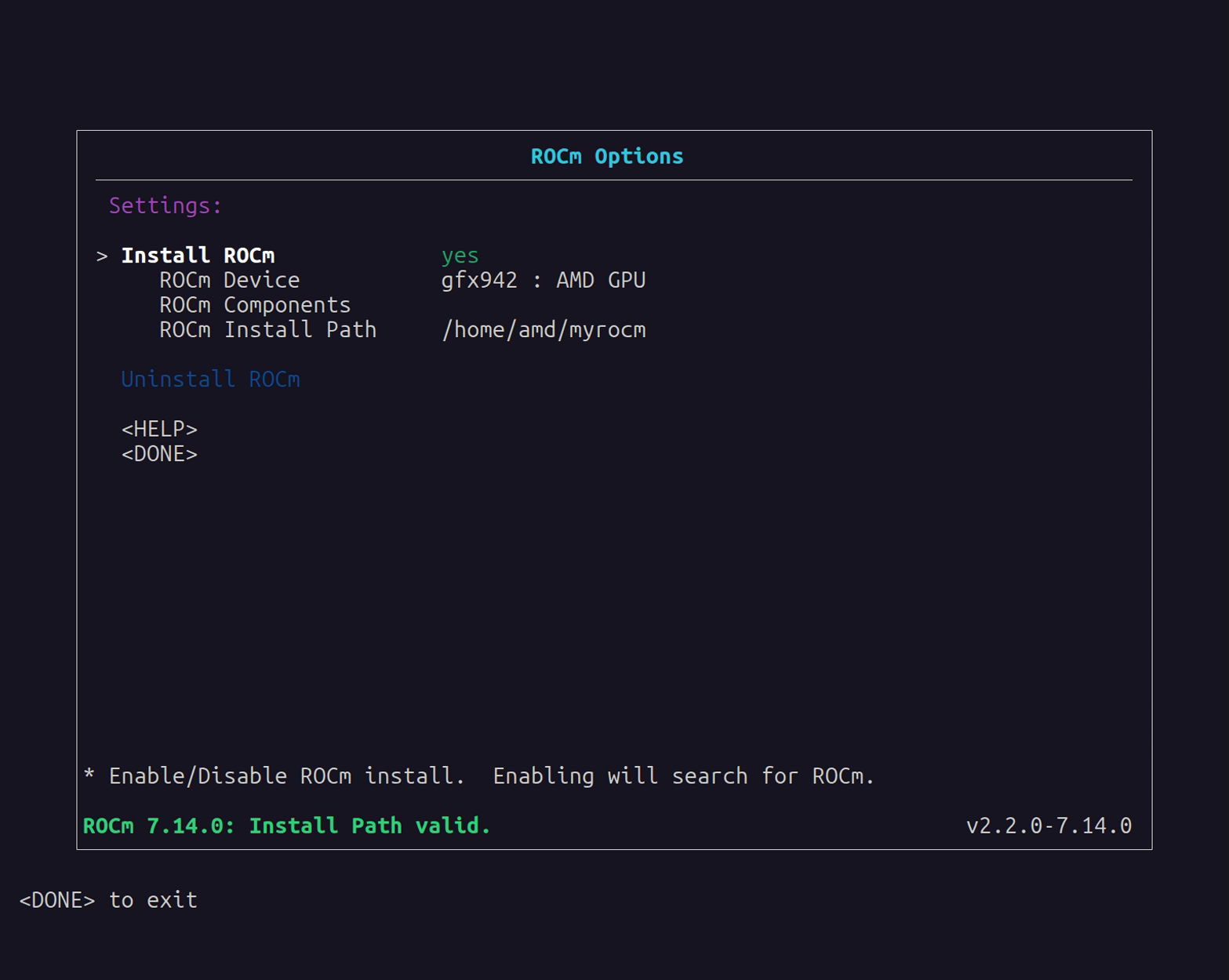
The ROCm Options menu can include or exclude ROCm from the installation and provides access to device/architecture and component selection.
Install ROCm
This field indicates whether to include ROCm components in the installation. If this field is set to
yes, ROCm installation is enabled and the Runfile Installer searches for any existing ROCm installations at the currently set ROCm Install Path. If a previous ROCm installation is detected, the Uninstall ROCm field becomes selectable.ROCm Device
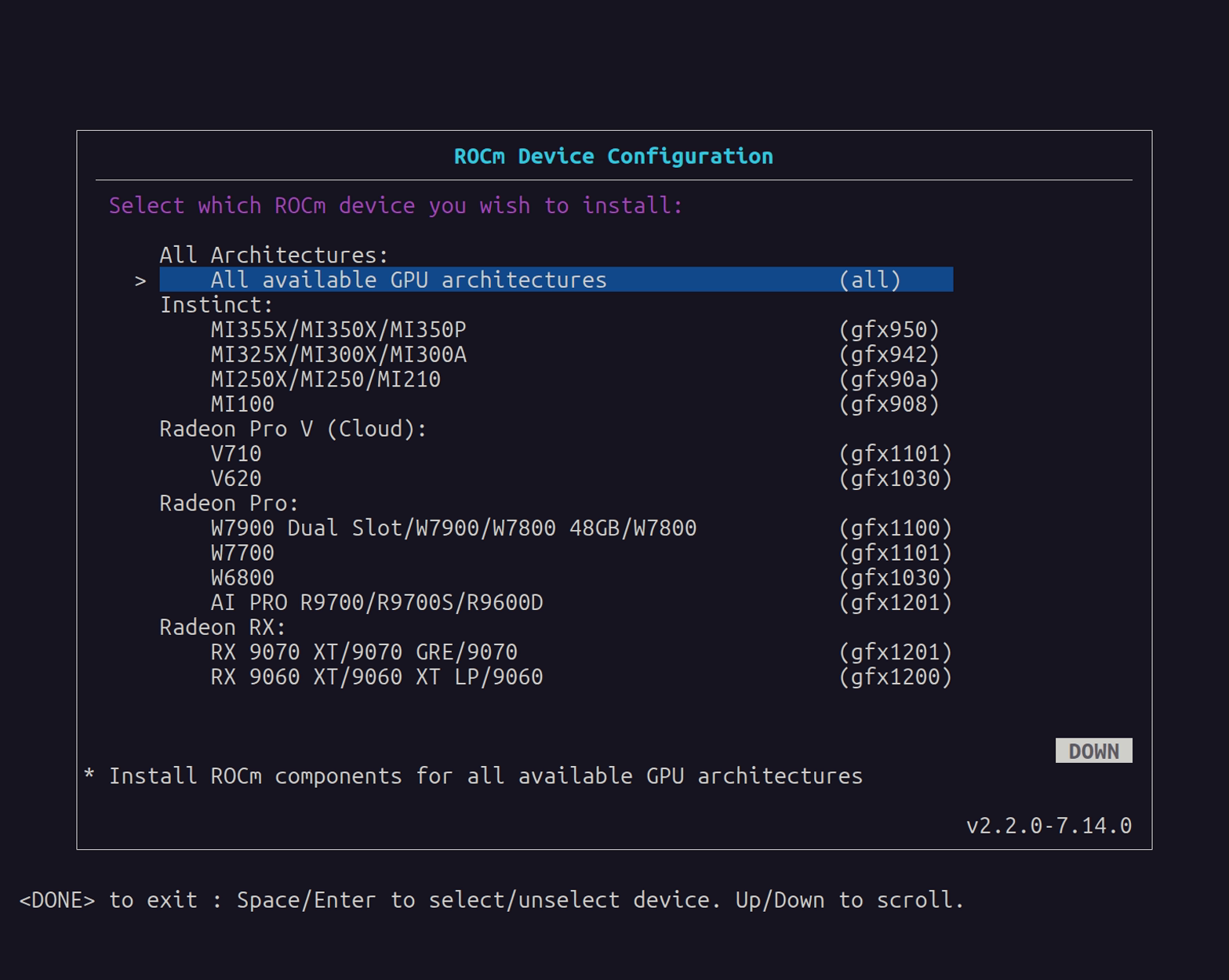
This submenu allows you to select which GPU architectures to install. You can choose specific architectures (gfx942, gfx1100, gfx950, and so on), multiple architectures, or all available architectures. The installer will list the currently auto-detected GPU and associated architecture by default.
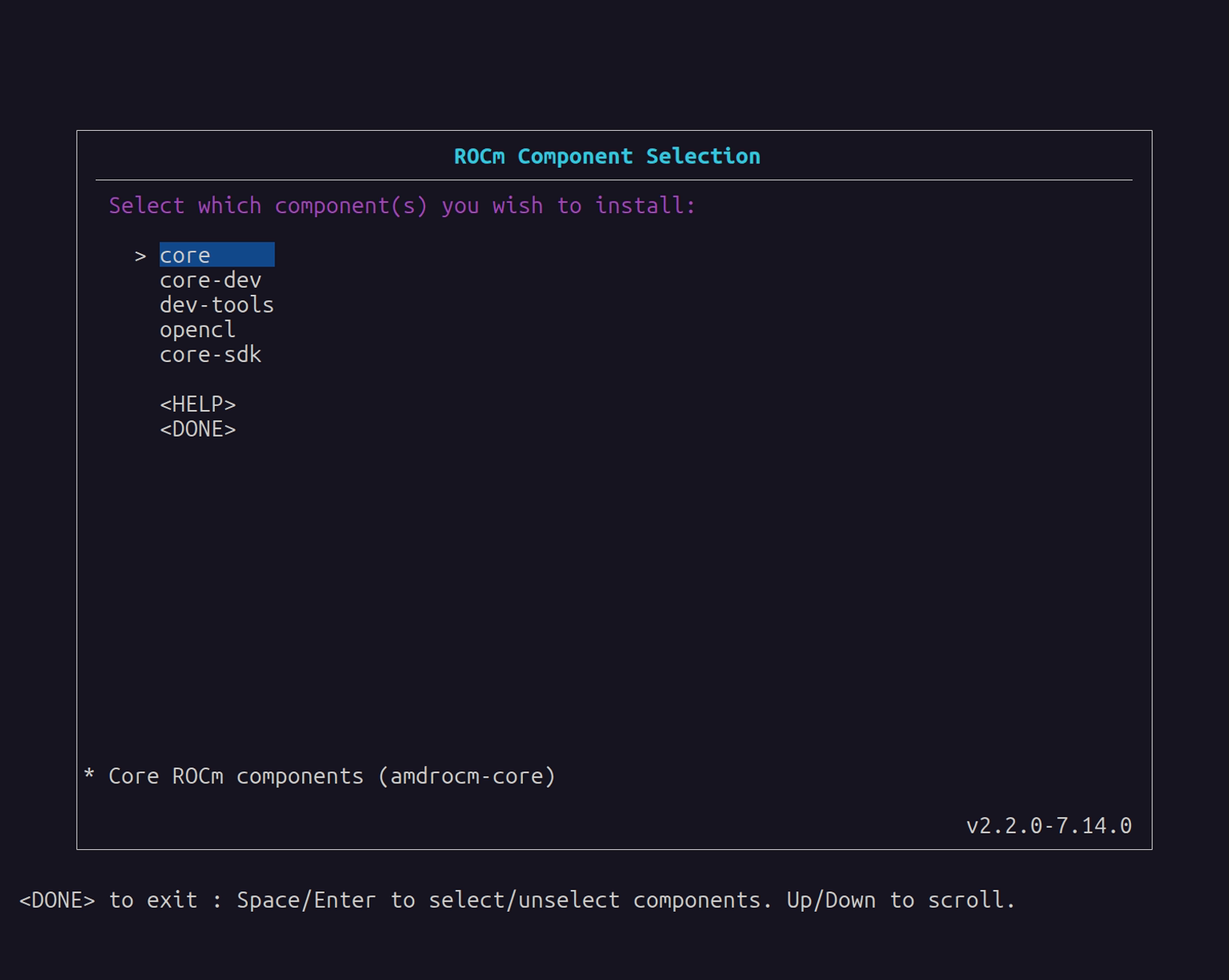
ROCm Components
This submenu allows you to select which ROCm component categories to install:
core: Core ROCm components
core-dev: Core development components
dev-tools: Developer tools
core-sdk: Core SDK components
opencl: OpenCL runtime
ROCm Install Path
If Install ROCm is set to
yes, the ROCm Install Path field can set the full path to the directory where ROCm will be installed. The default location is/opt, which results in a/opt/rocm/core-x.y.zinstallation.When ROCm Install Path is set to a new path, the installer validates the new directory location. If the directory exists, the ROCm installation can proceed. If an invalid location is specified, the ROCm installation will not be allowed.
Uninstall ROCm
This field is only available if previous Runfile ROCm installations are discovered on the system where ROCm is being installed, based on the currently selected ROCm Install Path location. The installer only lists previous installation locations that are on the current install path. If any installation locations are present on this path, they can be selected for uninstall.
The installer indicates the type of installation as follows:
P (Package manager): Package manager installation that matches the ROCm version for the Runfile Installer. In this case, uninstall is not allowed.
C (Runfile conflict): Runfile installation that matches the ROCm version for the Runfile Installer. The conflicting installation can be uninstalled.
R (Runfile): Runfile installation that differs from the ROCm version for the Runfile Installer. The installation can be uninstalled.
Uninstall ROCm is for a single ROCm instance at a time and is only available for Runfile installs. Package manager installs of ROCm cannot be uninstalled by the Runfile installer and must be uninstalled manually using the package management application.
Note
For multi-architecture installs from the current ROCm Install Path, the GUI interface will uninstall all architectures. To uninstall specific GPU architectures, use the command line interface for uninstall.
Driver Options menu#
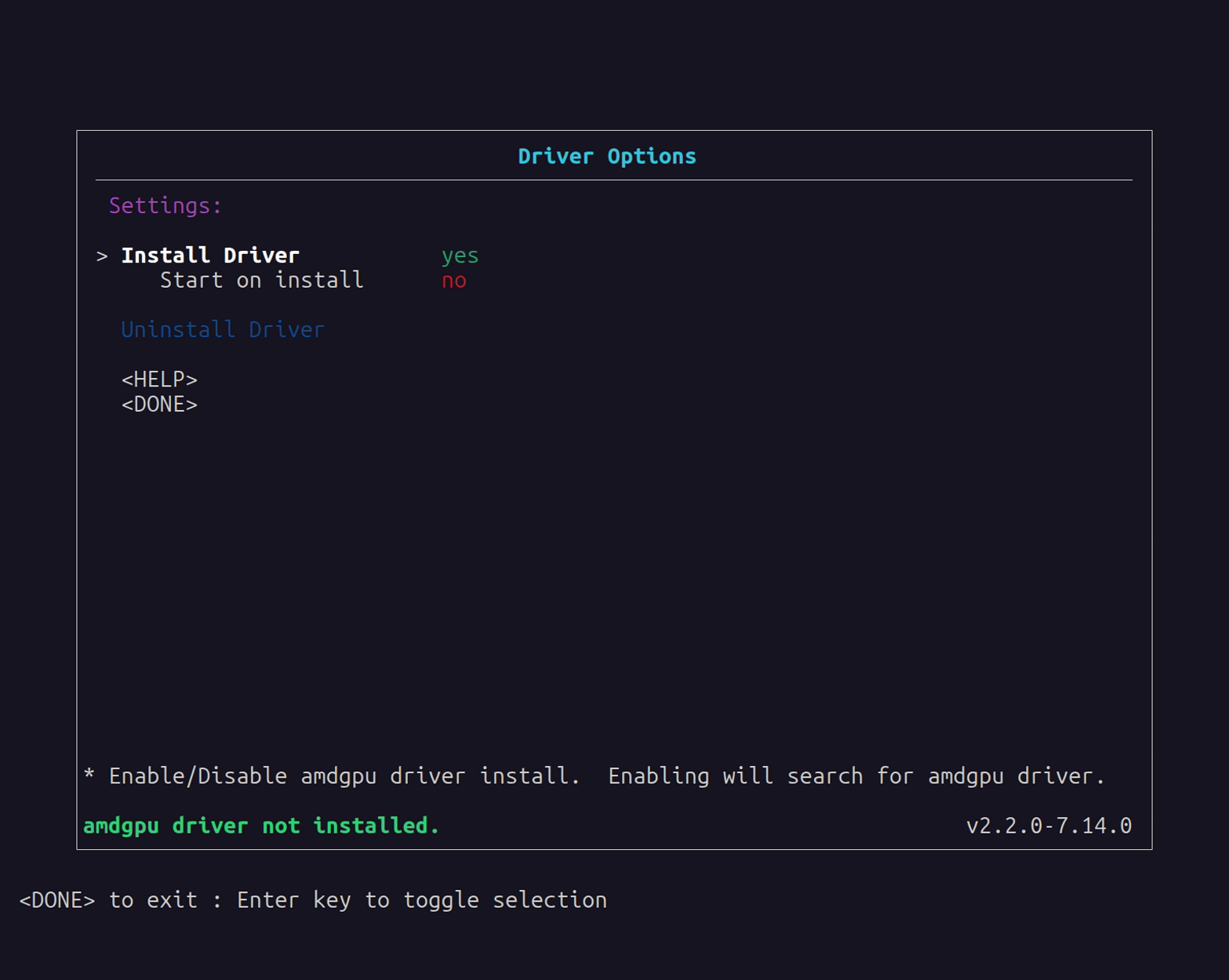
The Driver Options menu can include or exclude the AMD GPU Driver from the installation.
Install Driver
This field indicates whether to include the AMD GPU Driver in the installation. If this field is set to
yes, AMD GPU Driver installation is enabled. When this field is enabled, the system is searched for any existing AMD GPU Driver installations. If a previous AMD GPU Driver installation is detected, the Uninstall Driver field becomes selectable.Note
The AMD GPU Driver is installed for the currently running Linux kernel version. To install the AMD GPU Driver for a different kernel, reboot to the specific Linux kernel and reinstall the AMD GPU Driver using the runfile.
Start on install
If the Start on install option is enabled, the Runfile installer uses
modprobeto automatically launch the AMD GPU Driver after installation. If a pre-existing AMD GPU Driver is already loaded on the system, the new driver will not start. This option can be useful for installing the driver on a system where the GPU device is newer and not yet natively supported as part of the upstream GPU driver for the Linux distribution.Uninstall Driver
This field is only available if a previous Runfile install of the AMD GPU Driver is discovered on the install system. If a Runfile installation of the AMD GPU Driver is detected, select Uninstall Driver to remove it. Package manager installs of the AMD GPU Driver cannot be uninstalled by the Runfile installer and must be uninstalled manually using the package management application.
Post-Install Options menu#
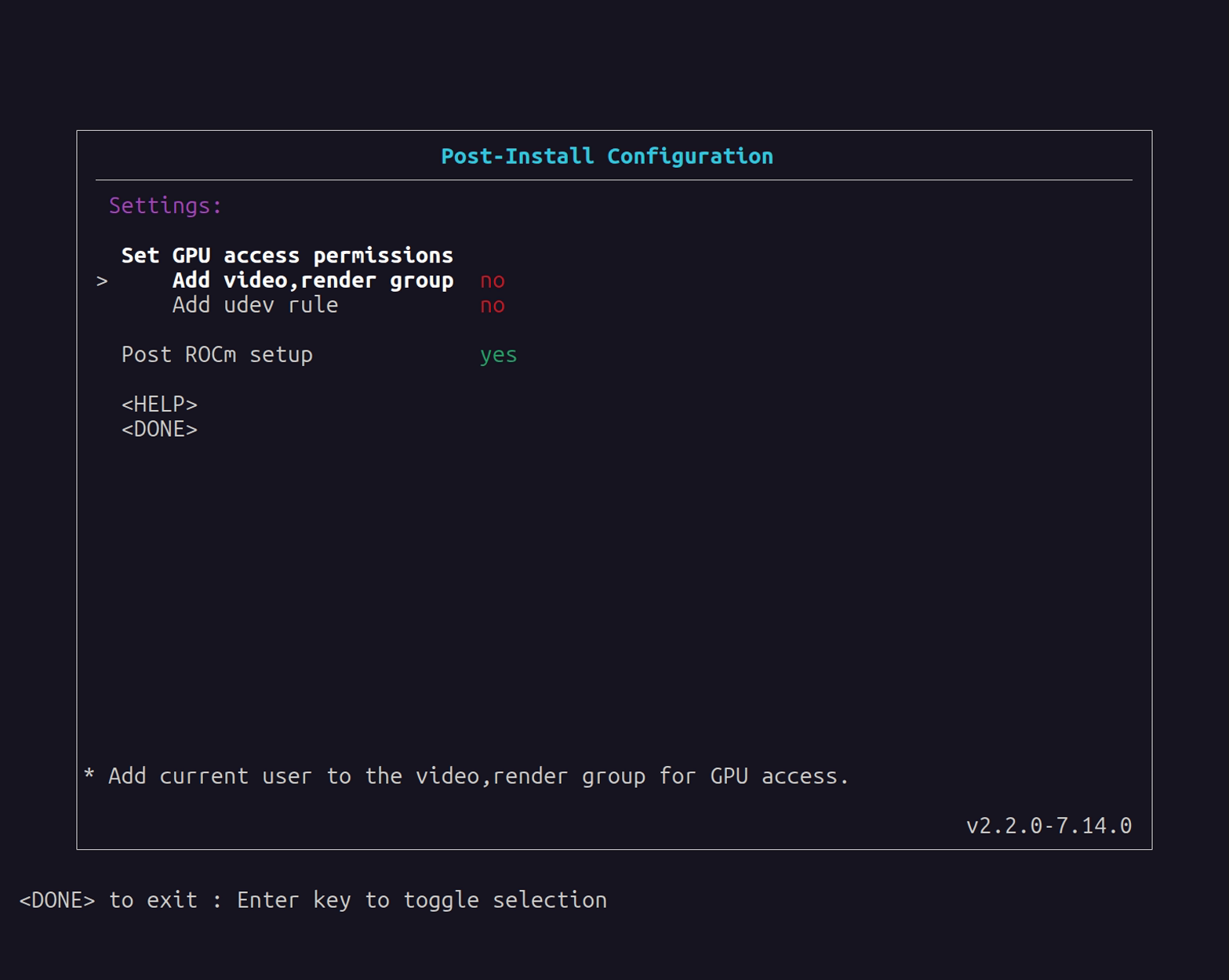
Use the Post-Install Options menu to optionally enable additional setup and configuration items after the initial ROCm install.
Set GPU access permissions
This section sets the GPU access permissions after the ROCm installation. Typically, any ROCm component using the GPU and requiring access to GPU resources needs to set the access permission. For ROCm, GPU access is controlled by membership in the
videoandrendergroups. Membership and access to GPU resources can be set using one of two methods.Add video,render group
If the Add video,render group field is enabled, the current
$USERis added to the groups and will be granted GPU access.Add udev rule
If the Add udev rule field is enabled, GPU access is granted to all users on the system.
Note
It’s recommended that you enable one of the GPU access options for using ROCm.
Only one method for adding GPU access can be selected.
Post ROCm setup
When this option is enabled, the ROCm post-install setup is performed. This includes configuring symbolic links and other system requirements for using ROCm and the ROCm runtime. This option is enabled by default for ROCm installations.
Tip
It’s recommended that you enable the Post ROCm setup to guarantee proper functioning of the ROCm components and applications. However, advanced users who understand the ROCm setup might want to disable this option so they can control the post-installation ROCm setup for their specific environment.
Using the GUI#
Start the ROCm Runfile Installer user interface from the terminal and launch the Main menu. While navigating through the user interface menus, use the Done option to return to the previous menu. Some menus have a Help option to display more information about the elements within the current menu.
Follow these steps to install ROCm and the AMD GPU Driver:
(Optional) Install dependencies:
Enter the Pre-Install Configuration menu.
Select the ROCm checkbox, Driver checkbox, or both to specify the dependency type.
(Optional) Select the Graphics checkbox if you need graphics support for Mesa/OpenGL workloads.
If using the installer to install missing required dependencies, select Install Dependencies.
To manually install the required dependencies, select Display Dependencies to list all the dependencies or Validate Dependencies to only list the missing dependencies on the current system. Quit the installer using DONE->F1 and separately install the required dependencies, which will be listed in the
deps_list.txtfile at the File location. After completing this task, restart the ROCm Runfile Installer and proceed to step 2.
Set the ROCm options:
Enter the ROCm Options menu.
Set Install ROCm to yes to include ROCm components in the installation.
(Optional) Enter the ROCm Device submenu to select GPU architectures. By default, the installer auto-detects your GPU.
Enter the ROCm Components submenu to select component categories.
(Optional) Select Uninstall ROCm to uninstall a previous Runfile installation or specific architectures.
Leave the ROCm Install Path field set to the default location (
/opt) to install ROCm to/opt/rocm/core-x.y.zor set the install location to a valid existing directory.
Set the AMD GPU Driver options:
Enter the Driver Options menu.
Set Install Driver to yes to include the AMD GPU Driver in the installation.
(Optional) Select Start on install to load the driver after installation.
(Optional) Select Uninstall Driver to uninstall a previous Runfile installation.
Set the post-install options:
Set the method of enabling permission for GPU access to Add video,render group or Add udev rule.
Set the Post ROCm setup to yes to include configuration of ROCm post-installation, which is recommended and enabled by default. Set to no to exclude the post-installation.
Command line install#
The command line install interface can be used as an alternative to the menu-based ROCm Runfile Installer GUI to reduce user interaction during the installation and enable automation scenarios.
Run the ROCm Runfile Installer from the terminal command line as follows:
bash rocm-installer-7.14.0-5.run <options>
The <options> parameter can be set to these options:
User help/information
help: Displays information on how to use the ROCm Runfile Installer.version: Displays the current version of the ROCm Runfile Installer.buildinfo: Display ROCm build information (TheRock commit, GitHub run ID, and so on).
Runfile options
noexec: Disable all installer execution. Extract the.runfile content only.noexec-cleanup: Disable cleanup after installer execution. Keep all.runextracted and runtime files.
Dependencies
deps=<arg> <compo>:<arg>:list <compo>: Lists the required dependencies for the install<compo>.validate <compo>: Validates which required dependencies are installed or not installed for<compo>.install-only <compo>: Installs the required dependencies only for<compo>.install <compo>: Installs with the required dependencies for<compo>.
<compo>: Install component (rocm/amdgpu/rocm amdgpu).
Install
rocm: Enable ROCm components install.amdgpu: Enable AMD GPU Driver install.force: Force the ROCm and AMD GPU Driver install.graphics: Enable graphics support by installingamdgpu-libfor Mesa/OpenGL.target=<directory>: The target directory path for the ROCm components install (default:/opt).gfx=<arch>: GPU architecture to install.<arch>: Architecture specification (for example,gfx942,gfx1100,gfx950).Special values:
gfx=all: Install all available architectures.gfx=list: Show available architectures in the installer.gfx=list-installed: Show currently installed architectures (checks/optby default; use withtarget=<path>to check a different location).gfx=show: Detect and display GPU information.
Multiple architectures:
gfx=gfx942,gfx950(comma-separated).If not specified, auto-detects GPU and installs matching architecture.
compo=<component_list>: Comma-separated list of ROCm components to install.Available components:
core,core-dev,dev-tools,core-sdk,opencl.Default:
core(if not specified).compo=list: Show available component categories.Examples:
compo=core,compo=core,dev-tools,compo=core-sdk.
Post-install
postrocm: Run the post-installation ROCm configuration. By default, post-install runs automatically withrocminstallation. Use this to run post-install after installing withnopostrocm.nopostrocm: Disable post ROCm installation configuration. Use this flag to skip post-install processing.amdgpu-start: Start the AMD GPU Driver after the install.gpu-access=<access_type><access_type>:user: Adds the current user to therender,videogroup for GPU access.all: Grants GPU access to all users on the system usingudevrules.
Uninstall
uninstall-rocm (target=<directory>): Uninstall ROCm.(
target=<directory>): Optional target directory for the ROCm uninstall (default:/opt/rocm/core-x.y.z).Multi-architecture selective uninstall:
gfx=<arch>: Uninstall specific architecture (for example,gfx=gfx1100).gfx=all: Uninstall all architectures.Base components remain until last architecture is removed.
uninstall-amdgpu: Uninstall the AMD GPU Driver.
Information/Debug
findrocm: Search for a ROCm installation.manifest: List the version of all ROCm components included in the installer.manifest=<gfx>: List components for specific GFX architecture (for example,manifest=gfx1100,manifest=base).prompt: Run the installer with user prompts.assumeyes: Automatically answer yes to all prompts (useful for automation/scripting).verbose: Run the installer with verbose logging.
Note
The installer can be used with multiple <options> combinations to enable specific stages of the
ROCm install process (pre-installation and post-installation). The exception is any option that uses the
keyword -only will apply that option only and no others. Some
informational options are also single-option commands.
Command line interface#
The command line interface for the ROCm Runfile Installer is based on the
<options> list provided to the installer .run file.
Basic installation examples#
This example demonstrates how to perform a basic ROCm installation with auto-detected GPU architecture:
bash rocm-installer-7.14.0-5.run rocm
This example demonstrates how to perform a typical ROCm installation with dependencies installed, specific GPU architecture, and post-install configuration:
bash rocm-installer-7.14.0-5.run deps=install gfx=gfx942 rocm
This example demonstrates how to install ROCm to a custom location with GPU access configuration:
bash rocm-installer-7.14.0-5.run deps=install target="$HOME/myrocm" gfx=gfx942 rocm gpu-access=all
Multi-architecture installation examples#
Install multiple GPU architectures:
bash rocm-installer-7.14.0-5.run gfx=gfx942,gfx950,gfx1100 rocm
Install all available architectures:
bash rocm-installer-7.14.0-5.run gfx=all rocm
Component selection examples#
Install core components only (default):
bash rocm-installer-7.14.0-5.run gfx=gfx942 rocm
Install core SDK with dependencies:
bash rocm-installer-7.14.0-5.run deps=install compo=core-sdk gfx=gfx942 rocm
Install multiple components:
bash rocm-installer-7.14.0-5.run compo=core,dev-tools gfx=gfx942 rocm
Graphics support example#
Install with graphics support for Mesa/OpenGL:
bash rocm-installer-7.14.0-5.run deps=install gfx=gfx942 rocm graphics
AMD GPU Driver installation examples#
Install AMD GPU Driver only:
bash rocm-installer-7.14.0-5.run amdgpu
Install AMD GPU Driver with dependencies:
bash rocm-installer-7.14.0-5.run deps=install amdgpu
Combined installation examples#
Install both ROCm and AMD GPU Driver:
bash rocm-installer-7.14.0-5.run deps=install gfx=gfx942 rocm amdgpu gpu-access=all
Install to custom location with all components:
bash rocm-installer-7.14.0-5.run deps=install target="$HOME/myrocm" gfx=gfx942 rocm amdgpu gpu-access=all
Runfile options#
The ROCm Runfile Installer is a self-extracting .run file with a few options for controlling the extraction process.
When the installer .run file starts execution, the extraction process begins with a checksum validation to verify
the integrity of the .run file. If there are no errors, it begins extracting and decompressing the package contents.
The contents are output to a new directory named rocm-installer, located in the current working directory.
Usually, when extraction and decompression are complete, execution begins automatically by either starting up the GUI
(if no arguments are provided) or executing the rocm-installer.sh script with all command line arguments.
The rocm-installer.sh script is in the extracted rocm-installer directory.
When the GUI exits or the command line completes execution, the Runfile installer will automatically clean up the
rocm-installer directory and delete all content except for the log files and the deps_list.txt file.
In some cases, you might want to execute multiple commands from the same extraction and save the time required
to verify the checksum and extract and decompress the package contents of the .run file.
Two command line options let you disable the .run cleanup process: noexec and noexec-cleanup.
noexecThe
noexecoption is a single command line argument that lets the checksum and extraction process complete and then exits without starting the GUI or executing therocm-installer.shscript. All content will be maintained after the exit. You can then use therocm-installer.shscript directly from the command line without specifying the.runfile name.For example, extract the
.runfile and then userocm-installer.shinstead ofrocm-installer-7.14.0-5.runto install ROCm and the AMD GPU Driver separately:bash rocm-installer-7.14.0-5.run noexec cd rocm-installer bash rocm-installer.sh gfx=gfx942 rocm bash rocm-installer.sh amdgpu
Note
If the
noexecoption is used, all other<options>on the command line will be ignored.noexec-cleanupThe
noexec-cleanupoption disables the cleanup process after the GUI or command line interface exits. Unlike thenoexecoption, all command line arguments are processed as normal, but no content is deleted upon exit or completion. At this point, you can switch to using therocm-installer.shscript within therocm-installerdirectory to avoid re-extracting the contents.
Dependency options#
Like the GUI Pre-Install Configuration menu, the command line interface can list,
validate, and install the required dependencies. At the command line, add the deps=<arg> <compo> option to the
list of <options> for the .run file. The <compo> option can include any combination of the
rocm, amdgpu, and graphics tags.
The graphics option is intended for non-Instinct GPUs such as AMD Radeon or Ryzen GPUs/APUs to enable mixed
graphics and compute support for Mesa/OpenGL workloads.
deps=list <rocm/amdgpu/graphics>This dependency option lists all the dependencies required for the
.runfile-based ROCm installation, AMDGPU installation, graphics support, or any combination. It lists all required (Debian or RPM) packages that require pre-installation on the system. The additionalrocm,amdgpu, orgraphicsparameter is a requirement for thedeps=listoption that instructs the installer to list only the dependencies required by ROCm, the AMD GPU Driver, graphics support, or any combination.Running
deps=listcauses the installer to quit after listing the dependencies.deps=listcan combinerocm,amdgpu, andgraphicsand output the combined list of required dependencies.Use
deps=list <rocm/amdgpu/graphics>as a single<options>parameter:bash rocm-installer-7.14.0-5.run deps=list rocm bash rocm-installer-7.14.0-5.run deps=list amdgpu bash rocm-installer-7.14.0-5.run deps=list graphics bash rocm-installer-7.14.0-5.run deps=list rocm amdgpu graphics
Note
The list of required packages can be installed separately from the Runfile Installer.
deps=validate <rocm/amdgpu/graphics>This dependency option verifies whether any of the required ROCm, AMD GPU Driver, or graphics support packages in the dependency list are already installed on the system running the command. The output is a list of any missing dependency packages that require installation.
Running
deps=validatecauses the installer to quit after listing the missing dependencies.deps=validatecan combinerocm,amdgpu, andgraphicsand output the combined list of missing dependencies.Use
deps=validate <rocm/amdgpu/graphics>as a single<options>parameter:bash rocm-installer-7.14.0-5.run deps=validate rocm bash rocm-installer-7.14.0-5.run deps=validate amdgpu bash rocm-installer-7.14.0-5.run deps=validate graphics bash rocm-installer-7.14.0-5.run deps=validate rocm amdgpu graphics
Note
The list of missing packages can be installed separately from the Runfile Installer.
deps=installThis dependency option validates and installs any required packages in the dependency list for ROCm, the AMD GPU Driver, graphics support, or any combination that are missing on the system running the command. This dependency option is not a single
<options>parameter and can be added to a list of other options for the installer. Thedeps=installoption expects at least one of therocm,amdgpu, orgraphics<options>parameters to also be present in the list to enable the pre-installation of required dependencies before the Runfile Installer installs ROCm, the AMD GPU Driver, or graphics support.For example, to install the dependencies and ROCm, the command line is as follows:
bash rocm-installer-7.14.0-5.run deps=install rocm
To install the dependencies and the AMD GPU Driver, the command line is as follows:
bash rocm-installer-7.14.0-5.run deps=install amdgpu
To install the dependencies for graphics support, the command line is as follows:
bash rocm-installer-7.14.0-5.run deps=install graphics
To install the dependencies for ROCm, AMD GPU Driver, and graphics support, the command line is as follows:
bash rocm-installer-7.14.0-5.run deps=install rocm amdgpu graphics
Note
The installer can be set to only install dependencies and then quit. In this case, add
-onlyto thedeps=installoption:bash rocm-installer-7.14.0-5.run deps=install-only rocm bash rocm-installer-7.14.0-5.run deps=install-only amdgpu bash rocm-installer-7.14.0-5.run deps=install-only graphics bash rocm-installer-7.14.0-5.run deps=install-only rocm amdgpu graphics
Install options#
Like the GUI ROCm Options menu, the ROCm Runfile Installer can be configured to install ROCm with specific architectures, components, and installation locations.
rocmAt the command line, add the
rocmoption to enable ROCm installation.Note
This option must be in the list of
.run <options>for ROCm component installation.For example, to install ROCm with auto-detected GPU architecture:
bash rocm-installer-7.14.0-5.run rocm
target=<directory>This install option is used to set the target directory where ROCm will be installed. The
targetoption is only used as an option for ROCm installation and is not required for an AMD GPU Driver install.When
target=<directory>is not specified in the<options>list, the installer uses the default installation path of/opt. This results in a ROCm installation at/opt/rocm/core-x.y.z.You can change the default location and set the ROCm component installation directory using the
target=<directory>option. The<directory>argument must be a valid and absolute path to a directory on the system executing the ROCm Runfile Installer.For example, to install ROCm to the default
/opt/rocm/core-x.y.zlocation (explicit):bash rocm-installer-7.14.0-5.run target="/opt" gfx=gfx942 rocm
To install ROCm to a directory called
amd/myrocmin the$USERdirectory:bash rocm-installer-7.14.0-5.run target="$HOME/myrocm" gfx=gfx942 rocm
gfx=<arch>This install option specifies the GPU architecture to install. The installer includes architecture-specific components for different AMD GPU families.
Single architecture installation:
bash rocm-installer-7.14.0-5.run gfx=gfx942 rocm
bash rocm-installer-7.14.0-5.run gfx=gfx1100 rocm
bash rocm-installer-7.14.0-5.run gfx=gfx950 rocm
Multiple architecture installation (comma-separated):
bash rocm-installer-7.14.0-5.run gfx=gfx942,gfx950,gfx1100 rocm
Install all available architectures:
bash rocm-installer-7.14.0-5.run gfx=all rocm
Auto-detect GPU (default if
gfx=not specified):bash rocm-installer-7.14.0-5.run rocm
Architecture information commands:
bash rocm-installer-7.14.0-5.run gfx=show           # Detect and display GPU info
bash rocm-installer-7.14.0-5.run gfx=list           # List available architectures
bash rocm-installer-7.14.0-5.run gfx=list-installed # Show installed architectures
compo=<component_list>This install option specifies which ROCm component categories to install. Components can be specified individually or as comma-separated lists.
Available components:
core: Core ROCm components (default)core-dev: Core development componentsdev-tools: Developer toolscore-sdk: Core SDK componentsopencl: OpenCL runtime
Single component installation:
bash rocm-installer-7.14.0-5.run compo=core gfx=gfx942 rocm
bash rocm-installer-7.14.0-5.run compo=core-sdk gfx=gfx942 rocm
Multiple component installation (comma-separated):
bash rocm-installer-7.14.0-5.run compo=core,dev-tools gfx=gfx942 rocm
bash rocm-installer-7.14.0-5.run compo=core-sdk,opencl gfx=gfx942 rocm
List available components:
bash rocm-installer-7.14.0-5.run compo=list
If
compo=is not specified, the installer defaults to installing thecorecomponent.graphicsThis install option enables graphics support for Mesa/OpenGL workloads. When specified, the installer includes the
amdgpu-libpackage.bash rocm-installer-7.14.0-5.run gfx=gfx942 rocm graphics bash rocm-installer-7.14.0-5.run deps=install gfx=gfx942 rocm graphics
amdgpuAt the command line, add the
amdgpuoption to enable AMD GPU Driver installation.Note
This option must be in the list of
.run <options>for ROCm component installation. The AMD GPU Driver is installed for the currently running Linux kernel version. To install the AMD GPU Driver for a different kernel, reboot to the specific Linux kernel and reinstall the AMD GPU Driver using the runfile.For example, to install the AMD GPU Driver with no other options:
bash rocm-installer-7.14.0-5.run amdgpu
Note
Both
rocmandamdgpucan be combined in the<options>list to install both components. For this case, the command line is as follows:bash rocm-installer-7.14.0-5.run gfx=gfx942 rocm amdgpu
forceThe
forceinstall option can be added to the<options>list for the case of multiple pre-existing Runfile installs of ROCm. Add this option to disable any installer prompts that ask for confirmation to continue with the ROCm install if there are currently one or more Runfile ROCm installations already on the system.
Post-install options#
Similar to the GUI Post-Install Options menu, the post-install options can configure the ROCm Runfile Installer
to apply additional post-installation options after completing the installation.
At the command line, add one or more of the post-installation options to the <options> list for the .run file.
postrocmThis post-install option applies any post-installation configuration settings for ROCm following installation on the target system. The post-installation configuration includes any symbolic link creation, library configuration, and script execution required to use the ROCm runtime.
By default, post-install runs automatically when you use the
rocminstall option. You only need to explicitly usepostrocmin these scenarios:You installed with
nopostrocmand now want to run post-install separately.You want to run post-install on an existing installation.
To run post-install separately after installing with
nopostrocm:bash rocm-installer-7.14.0-5.run gfx=gfx942 rocm nopostrocm bash rocm-installer-7.14.0-5.run postrocm
The post-install takes into account the install location of ROCm, which you may specify with the addition of the
target=option. By default, iftarget=is not provided, the default location of/optwill be used to apply the post-installation:bash rocm-installer-7.14.0-5.run postrocm
For installation locations other than
/opt, use thetarget=option:bash rocm-installer-7.14.0-5.run target=/custom/path postrocm
ROCm installations using the Runfile installer can specify not only the location, but also the GPU architecture (
gfx=) and ROCm components (compo=). Post-installation takes this into account and will auto-detect the architectures and components installed at a location if not provided with thepostrocmoption. However, if a user needs to specify either architecture or components, thengfx=andcompo=options may be used with thepostrocmoption.Run post-install with a specific architecture:
bash rocm-installer-7.14.0-5.run gfx=gfx942 postrocm
Run post-install with a specific component:
bash rocm-installer-7.14.0-5.run compo=core-sdk postrocm
Note
Adding the
postrocmoption (or relying on the default behavior withrocm) is highly recommended to guarantee proper functioning of the ROCm components and applications.nopostrocmThis post-install option disables the automatic post-install configuration that normally runs when you use the
rocminstall option. Use this when you want to install ROCm without running the post-install scripts.bash rocm-installer-7.14.0-5.run gfx=gfx942 rocm nopostrocm
You can run the post-install later using the
postrocmoption (see above).gpu-access=<access_type>This post-install option sets the GPU resource access permissions. ROCm runtime libraries and applications might need access to the GPU. This requires setting the access permission to the
videoandrendergroups using the<access_type>.If the ROCm installation is for a single user, then set the
<access_type>for thegpu-accessoption touser.For example, to add the current user (
$USER) to thevideo,rendergroup for GPU access for a ROCm installation, the command line is as follows:bash rocm-installer-7.14.0-5.run gfx=gfx942 rocm gpu-access=user
In cases where a system administrator is installing ROCm for multiple users, they might want to enable GPU access permission for all users. For this case, set the
<access_type>for thegpu-accessoption toall:bash rocm-installer-7.14.0-5.run gfx=gfx942 rocm gpu-access=all
Note
Adding the
gpu-accessoption to the<options>list is recommended for using ROCm. A typical ROCm installation includes one of thegpu-accesstypes.
Uninstall options#
These options configure the ROCm Runfile Installer to uninstall a previous ROCm or AMD GPU Driver installation.
uninstall-rocm (target=<directory>) (gfx=<arch>)This option configures the ROCm Runfile Installer to uninstall a previous ROCm installation. For multi-architecture installations, you can selectively uninstall specific architectures or all architectures.
Uninstall with auto-detection of architecture:
To uninstall ROCm from the default location (
/opt/rocm/core-x.y.z):bash rocm-installer-7.14.0-5.run uninstall-rocm
To uninstall ROCm from a custom location:
bash rocm-installer-7.14.0-5.run target="$HOME/myrocm/rocm-x.y.z" uninstall-rocm
Uninstall with architecture selection:
Selective uninstall of one or more GPU architectures installed to a location. Using
gfx=, you can specify the architecture or architectures to uninstall. Only gfx-specific components will be removed for multi-installs, with common components remaining until the final architecture is uninstalled.To uninstall a specific architecture:
bash rocm-installer-7.14.0-5.run gfx=gfx1100 uninstall-rocm
bash rocm-installer-7.14.0-5.run target="$HOME/myrocm" gfx=gfx942 uninstall-rocm
To uninstall all architectures:
bash rocm-installer-7.14.0-5.run gfx=all uninstall-rocm
Note
The
uninstall-rocmoption can only remove ROCm if it was installed using the ROCm Runfile Installer. Traditional package-based ROCm installs will not be removed.uninstall-amdgpuThis option configures the ROCm Runfile Installer to uninstall a previous AMD GPU Driver installation.
To uninstall the AMD GPU Driver from the system, use the following command line:
bash rocm-installer-7.14.0-5.run uninstall-amdgpu
Note
The
uninstall-amdgpuoption can only remove the AMD GPU Driver if it was installed using the ROCm Runfile Installer. Traditional package-based AMD GPU Driver installs will not be removed.
Information and debug options#
The ROCm Runfile Installer command line interface includes options for information output or debugging.
findrocmThis information option searches the install system for any existing installations of ROCm. Any install locations are output to the terminal and the type of installation is indicated (Runfile or Package manager).
Use
findrocmas a standalone<options>parameter:bash rocm-installer-7.14.0-5.run findrocm
manifestThis information option lists the version of each ROCm component included in the installer. The
manifestoption causes the Runfile Installer to quit after listing the ROCm components.Use
manifestas a standalone<options>parameter:bash rocm-installer-7.14.0-5.run manifest
To list components for a specific architecture:
bash rocm-installer-7.14.0-5.run manifest=gfx942
bash rocm-installer-7.14.0-5.run manifest=gfx1100
bash rocm-installer-7.14.0-5.run manifest=base
buildinfoThis information option displays TheRock build information, including commit hash, GitHub run ID, build date, and other build metadata.
Use
buildinfoas a standalone<options>parameter:bash rocm-installer-7.14.0-5.run buildinfo
promptThis debug option enables user prompts in the installer. At specific, critical points of the installation process, the installer halts execution and prompts the user to either continue with the install or exit.
assumeyesThis automation option automatically answers yes to all prompts. This is useful for automation and scripting scenarios where user interaction is not desired.
bash rocm-installer-7.14.0-5.run deps=install gfx=gfx942 rocm assumeyes
verboseThis debug option enables verbose logging during ROCm Runfile Installer execution.
For example, to install ROCm with user prompts and verbose logging:
bash rocm-installer-7.14.0-5.run target="/opt" gfx=gfx942 rocm prompt verbose
Log files#
By default, the ROCm Runfile Installer GUI and command line interfaces record the output execution in log files.
These log files are created in the rocm-installer/logs directory.
The rocm-installer directory is created when the ROCm Runfile Installer self-extracts
to the current working directory where it is being executed.
Troubleshooting#
The following are common issues and solutions for the ROCm Runfile Installer.
Issue: Installer fails with “missing dependencies” error
Solution: Use
deps=validate rocmto see which dependencies are missing, then either:Install them manually using your package manager
Use
deps=install rocmto have the installer install them (requires internet connection)
Issue: GPU not detected or wrong architecture selected
Solution: Use
gfx=showto see detected GPUs, then manually specify the correct architecture:bash rocm-installer-7.14.0-5.run gfx=gfx942 rocm
Issue: Post-install configuration was skipped
Solution: Run post-install separately:
bash rocm-installer-7.14.0-5.run postrocm
Issue: Cannot access GPU after installation
Solution: Ensure GPU access permissions are set. Either:
Add your user to the video/render groups:
bash rocm-installer-7.14.0-5.run gpu-access=userGrant access to all users:
bash rocm-installer-7.14.0-5.run gpu-access=allLog out and log back in for group membership changes to take effect
Issue: Multi-architecture installation conflicts
Solution:
Check installed architectures:
bash rocm-installer-7.14.0-5.run gfx=list-installedRemove specific architecture if needed:
bash rocm-installer-7.14.0-5.run gfx=gfx1100 uninstall-rocmReinstall with correct architecture selection